Mask an area: replace an armchair
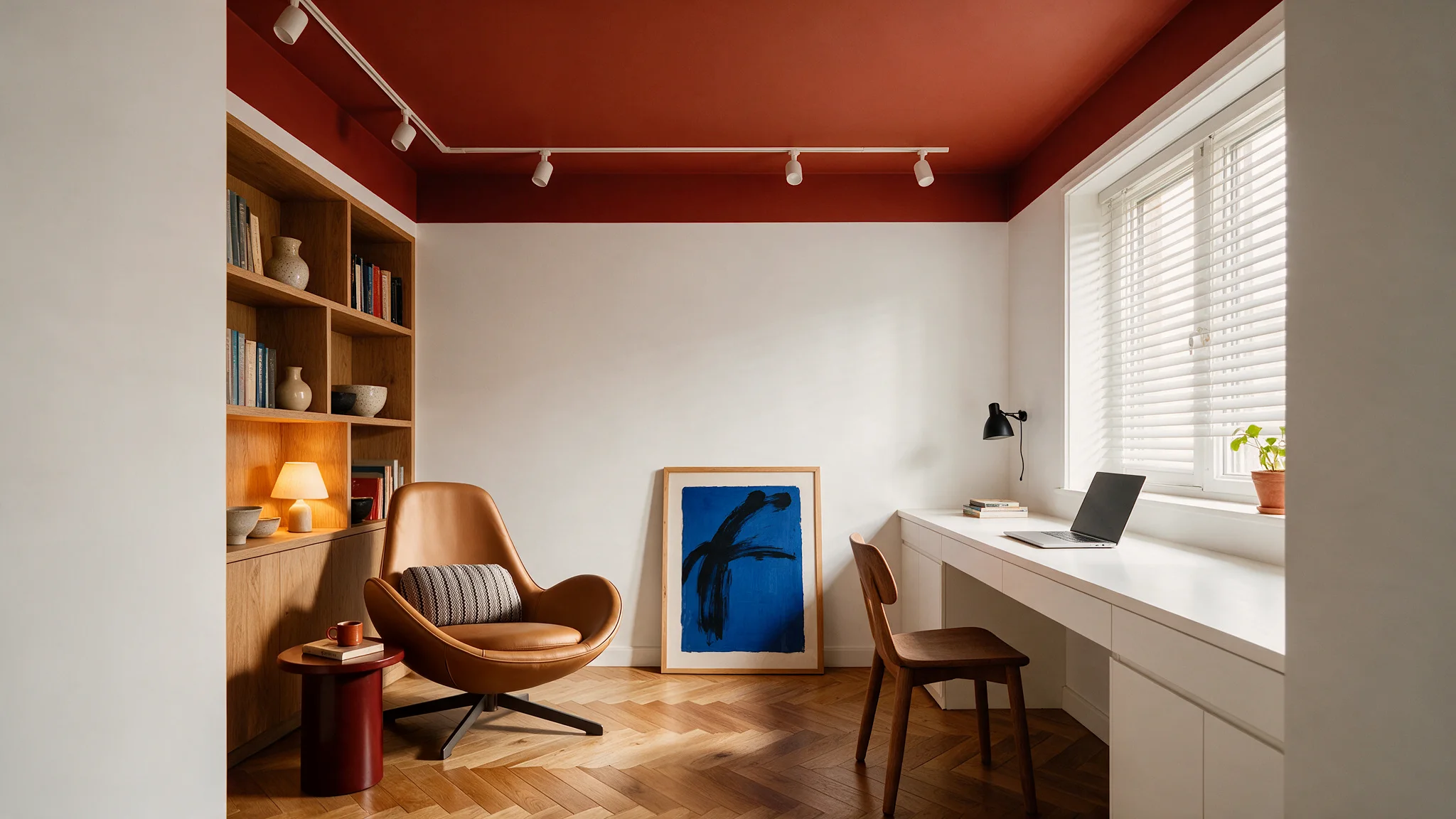
In the Edit area, mark an armchair with Mask and replace it in a targeted way using a description and a reference image.
- Level
- Fortgeschritten
- Starting point
- Rendering
- Features
- Bearbeiten, Maskieren, Referenzbild
- Length
- 1:16
What you learn in this video.
Under Edit, you mark the armchair with Mask. Only this area is regenerated, with a short description and a reference image of the new armchair. Floor, walls and light stay as before.
Mask an area in 6 steps.
This is how it goes in the video – in the same order in your account.
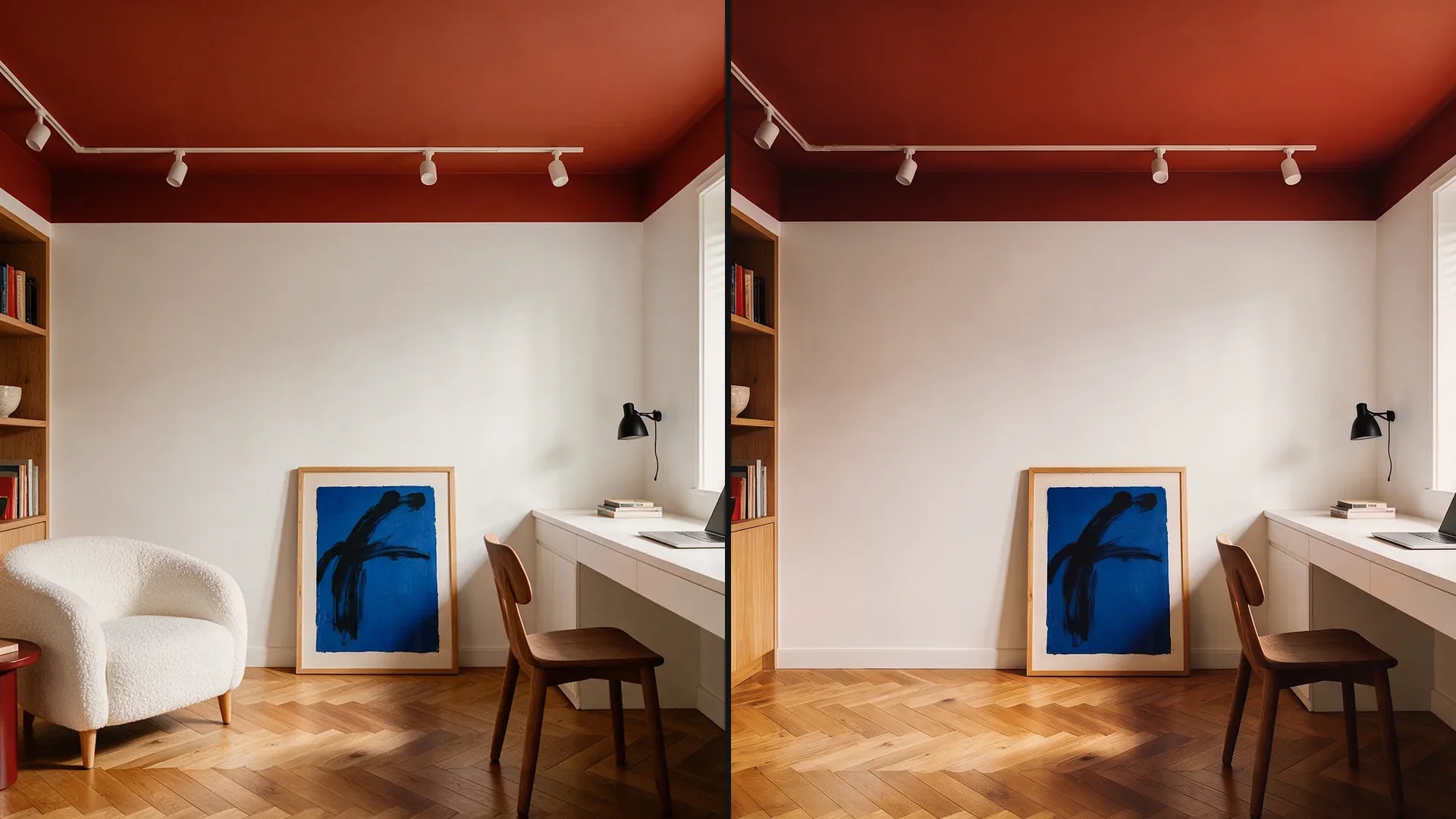
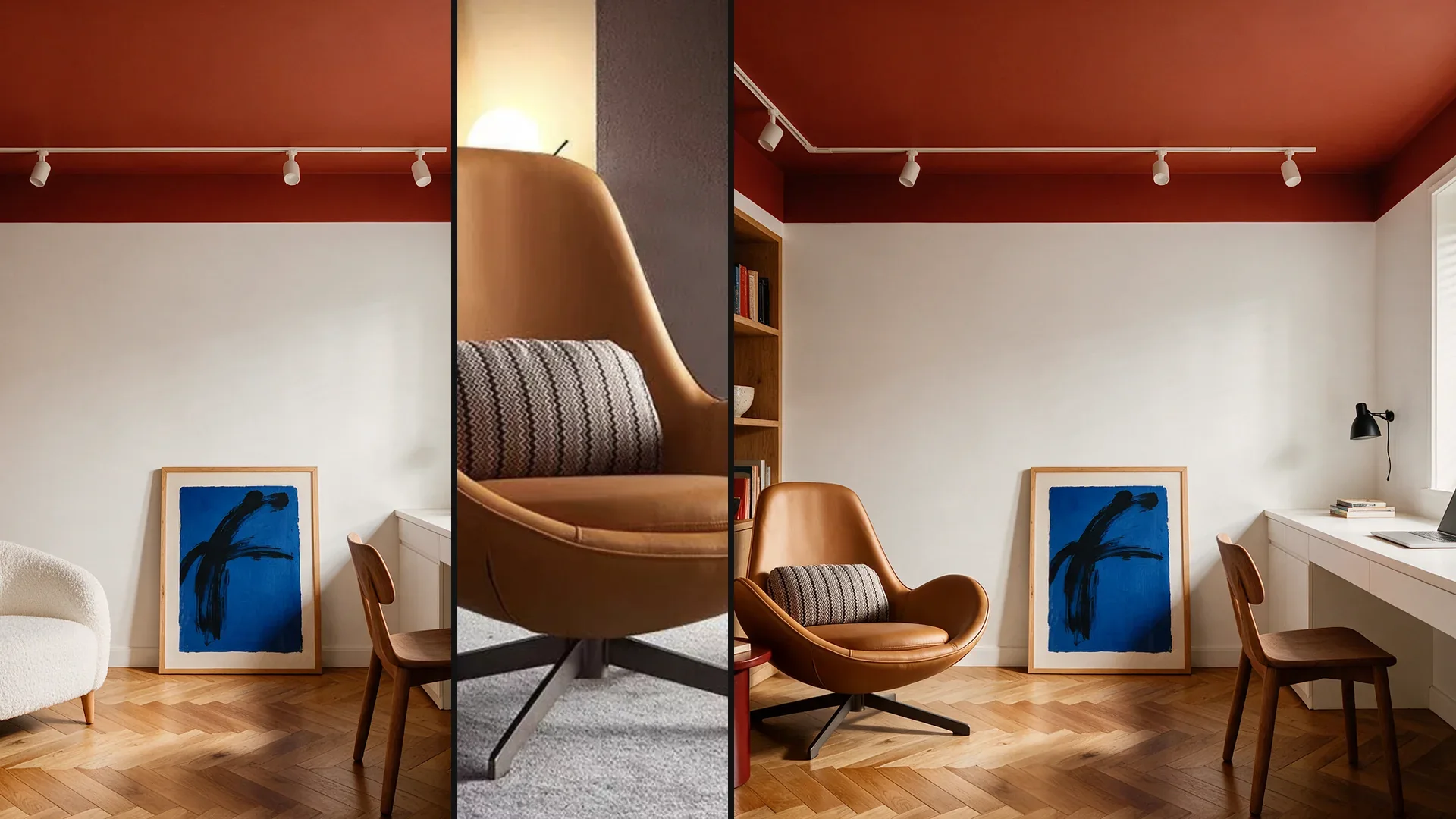
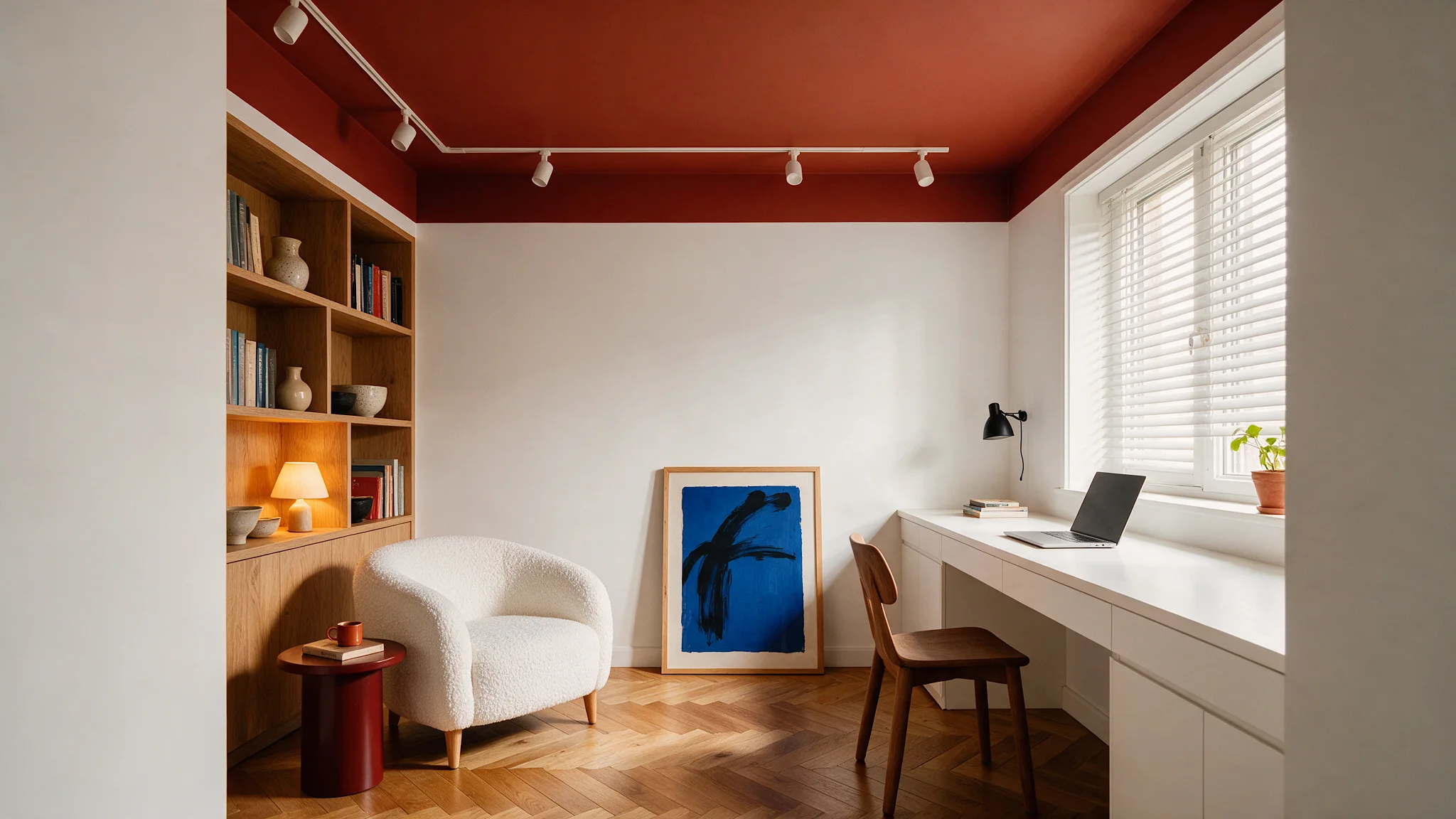
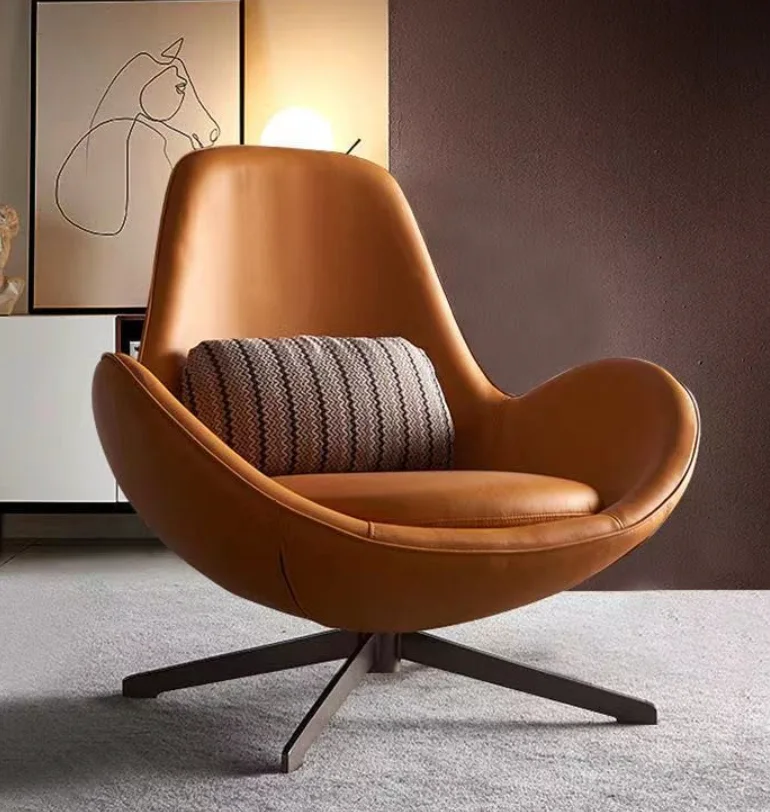
Input, reference and result.
Input, reference and result in full resolution. Click an image to open it full size.
Prompt for mask an area.
Entered exactly like this. Copy it and adjust the location, house and material.
New armchair as in the reference.
Typed in the Edit area, Mask.
Tips for better results.
Only the masked area is regenerated; the rest of the image stays untouched.
Reach your goal in a few steps. Each further edit builds on the last image, and with each step the quality can drop slightly.
TranscriptTranslated from the German voiceover. click a timestamp to start the video there
Questions about mask an area.
Open Edit, use Mask to drag a rectangle over the piece of furniture, and add a short description and a reference image of the new piece. After you click Generate, it stands in the same spot.
Related videos and features.
The feature in detail and the next videos.
Mask an area: change the facade
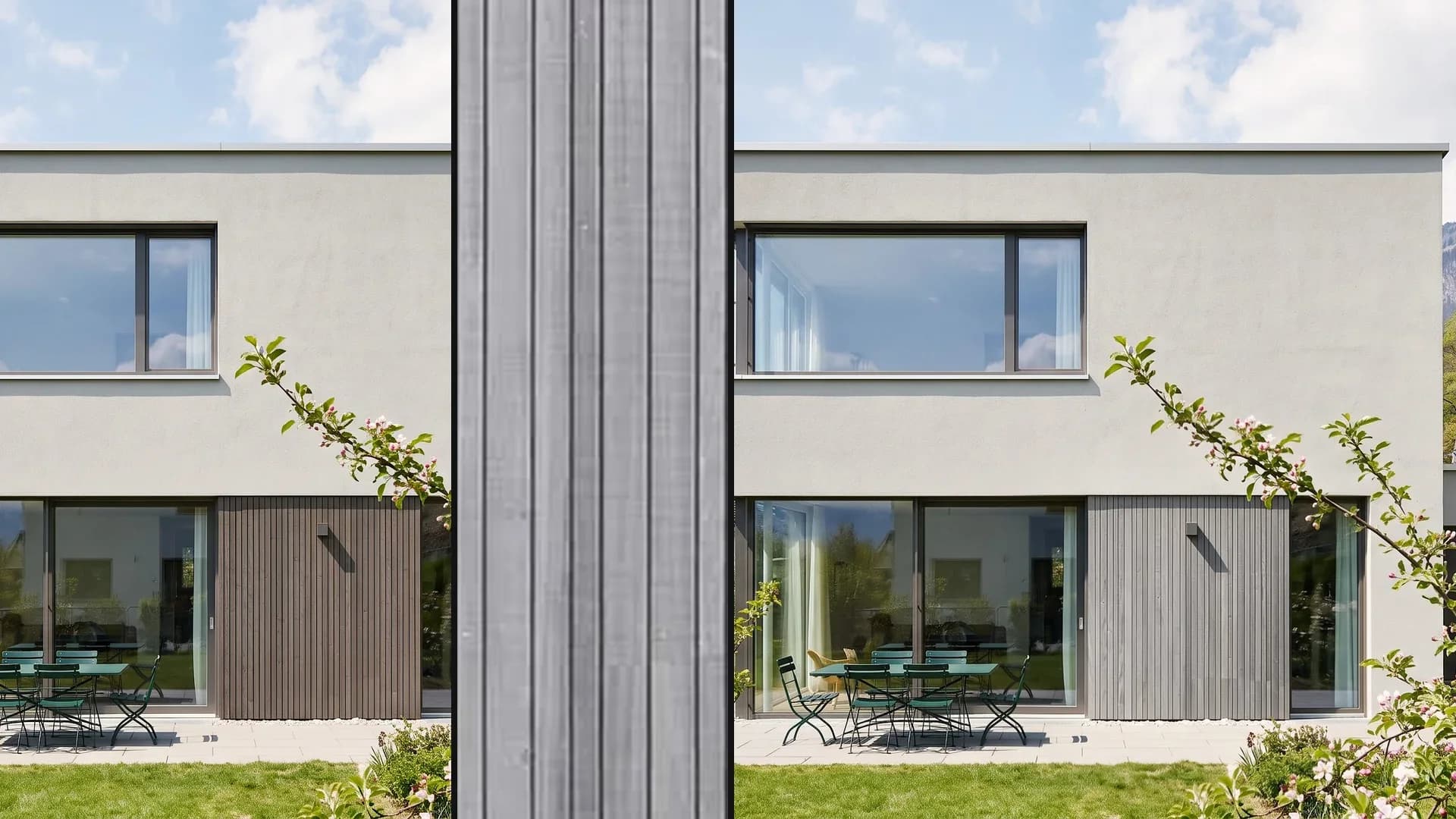
In the Edit area, mark part of the facade with Mask and change it to timber cladding using a reference image.
Place a new building in a photo
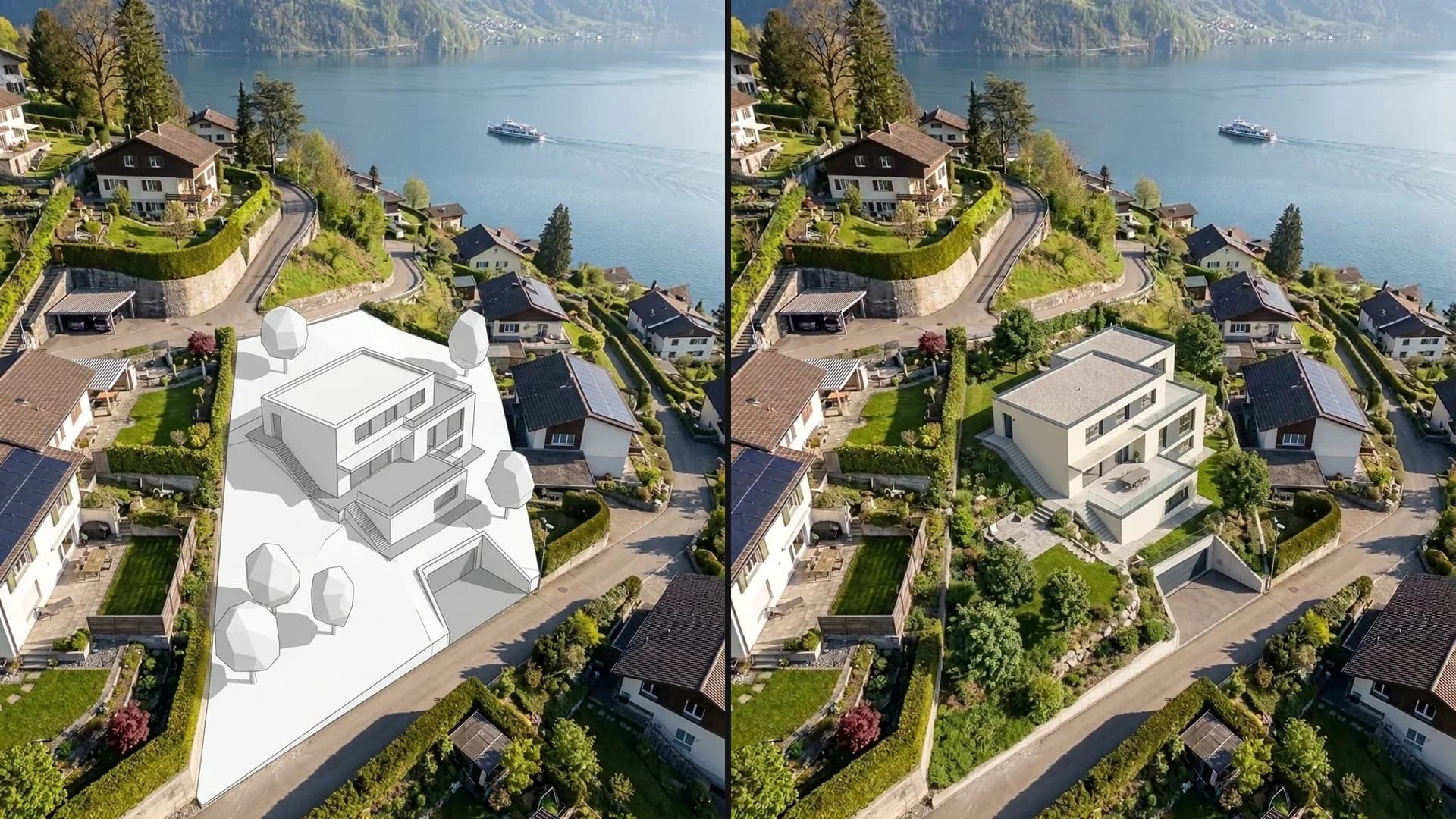
Turn a white massing block in a photo of the real surroundings into a finished house, while the surroundings and perspective stay the same.
Remove objects from a photo
Remove objects from a photo: once with a short description, once without text using Edit and Remove.