The Prompt Agent step by step
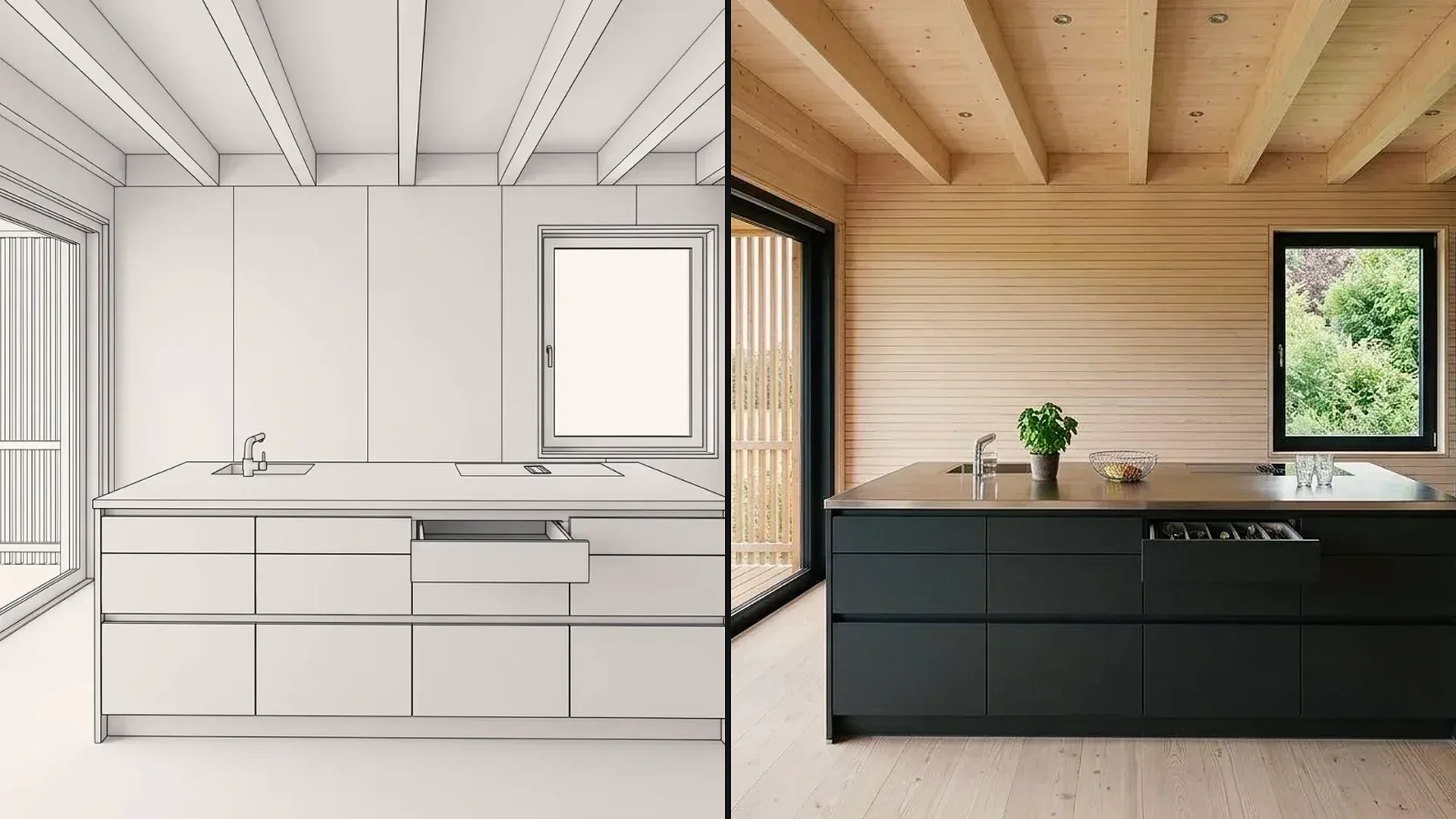
Develop a prompt in a conversation with the Prompt Agent, insert it into the text field and create an image of a kitchen-living room from it.
- Level
- Einstieg
- Starting point
- 3D-Modell
- Features
- Prompt Agent, Prompt verwenden, Als Vorlage speichern, Ergebnis korrigieren, Generieren
- Length
- 2:24
What you learn in this video.
Instead of writing the prompt yourself, you develop it in a conversation with the Prompt Agent. It asks about the ceiling, floor and light and suggests answers. You insert the finished prompt into the text field and generate the image.
The Prompt Agent in 13 steps.
This is how it goes in the video – in the same order in your account.
Input and result.
Input, reference and result in full resolution. Click an image to open it full size.
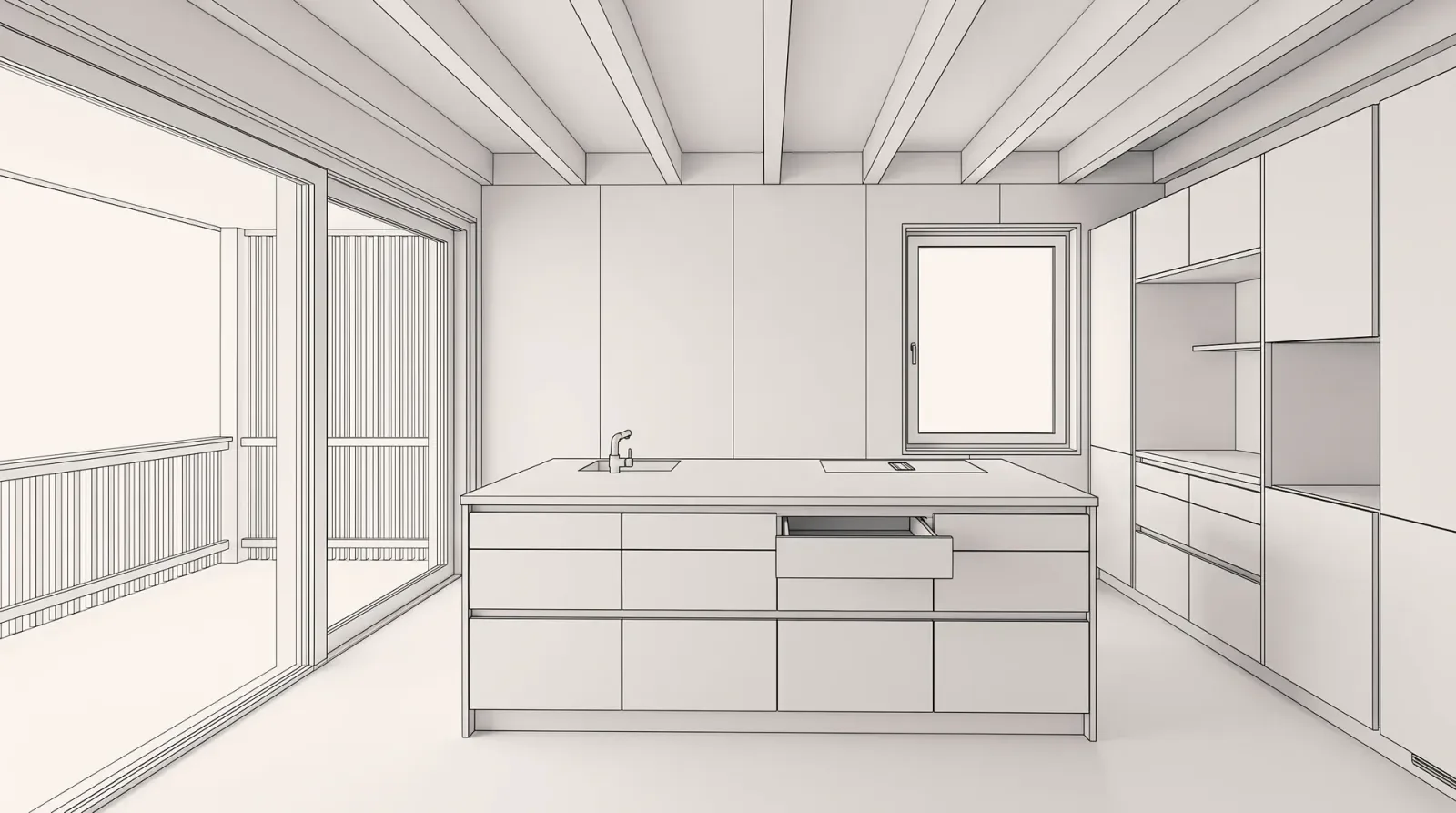
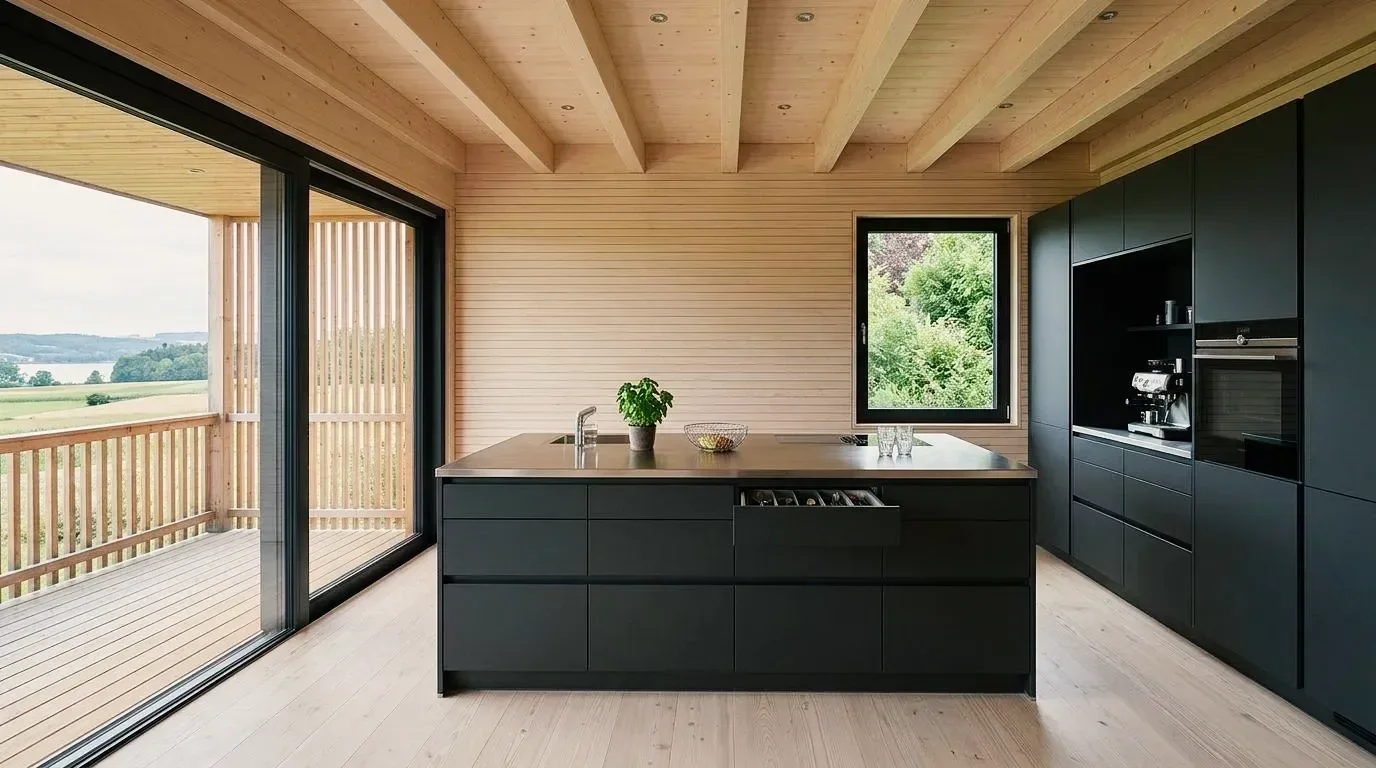
Prompt for the Prompt Agent.
Entered exactly like this. Copy it and adjust the location, house and material.
Turn the model into a photorealistic photo of a cozy kitchen-living room: dark kitchen fronts and tall cabinets, timber ceiling with beams, light wooden floor, large windows with a view of greenery, soft daylight. No change to the perspective or the architecture.
The Prompt Agent developed this prompt in the conversation. It is inserted into the text field with Use Prompt; it is not typed.
Tips for better results.
You can enter your idea in your own words. The Prompt Agent asks about what is still missing.
If the result does not fit, adjust the prompt with Fix My Result instead of editing the image again and again. With each further edit, the quality can drop slightly.
Save a good prompt as a template for the next project.
TranscriptTranslated from the German voiceover. click a timestamp to start the video there
Questions about the Prompt Agent.
It develops a prompt with you in a conversation. You enter your idea in your own words. It asks, for example, about the ceiling, floor and light and suggests answers you can click.
Related videos and features.
The feature in detail and the next videos.
The workspace at a glance
A tour of the workspace: every feature in the sidebar shown with an example, from Generate to Upscale.
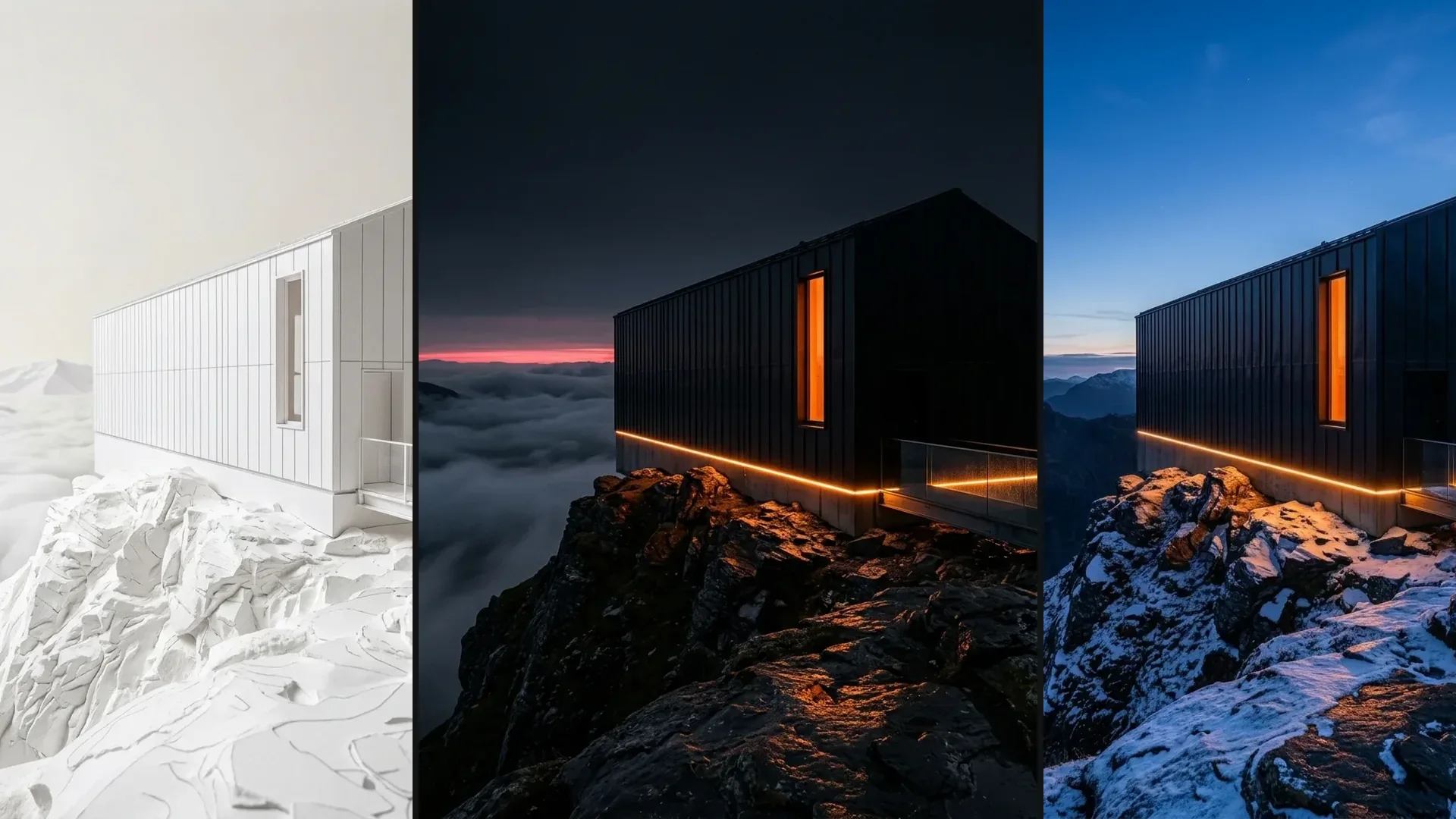
3D model to visualization
Create a photo from a view of a white 3D model, then show a material variant and the same scene in winter.
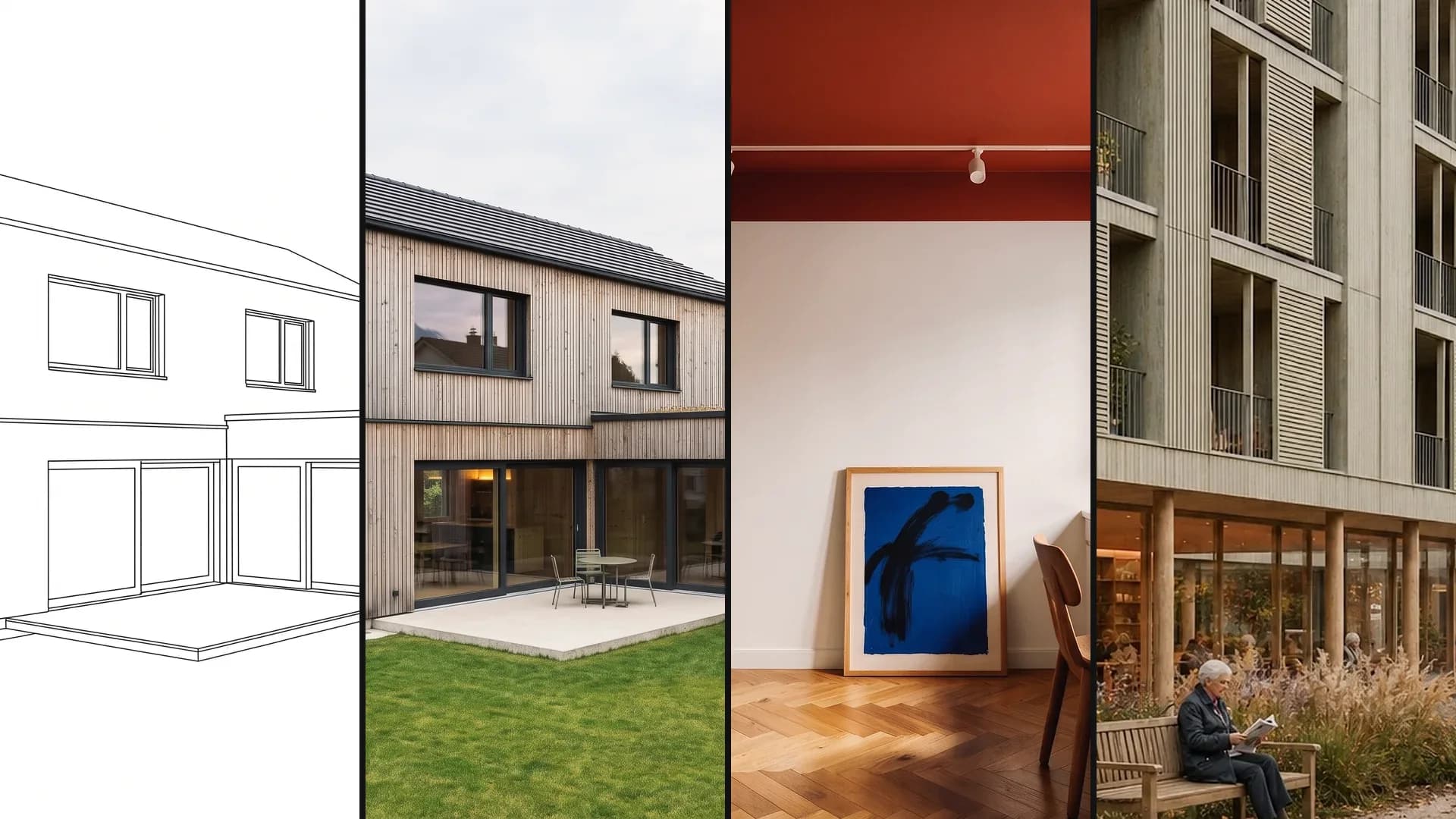
CAD to visualization
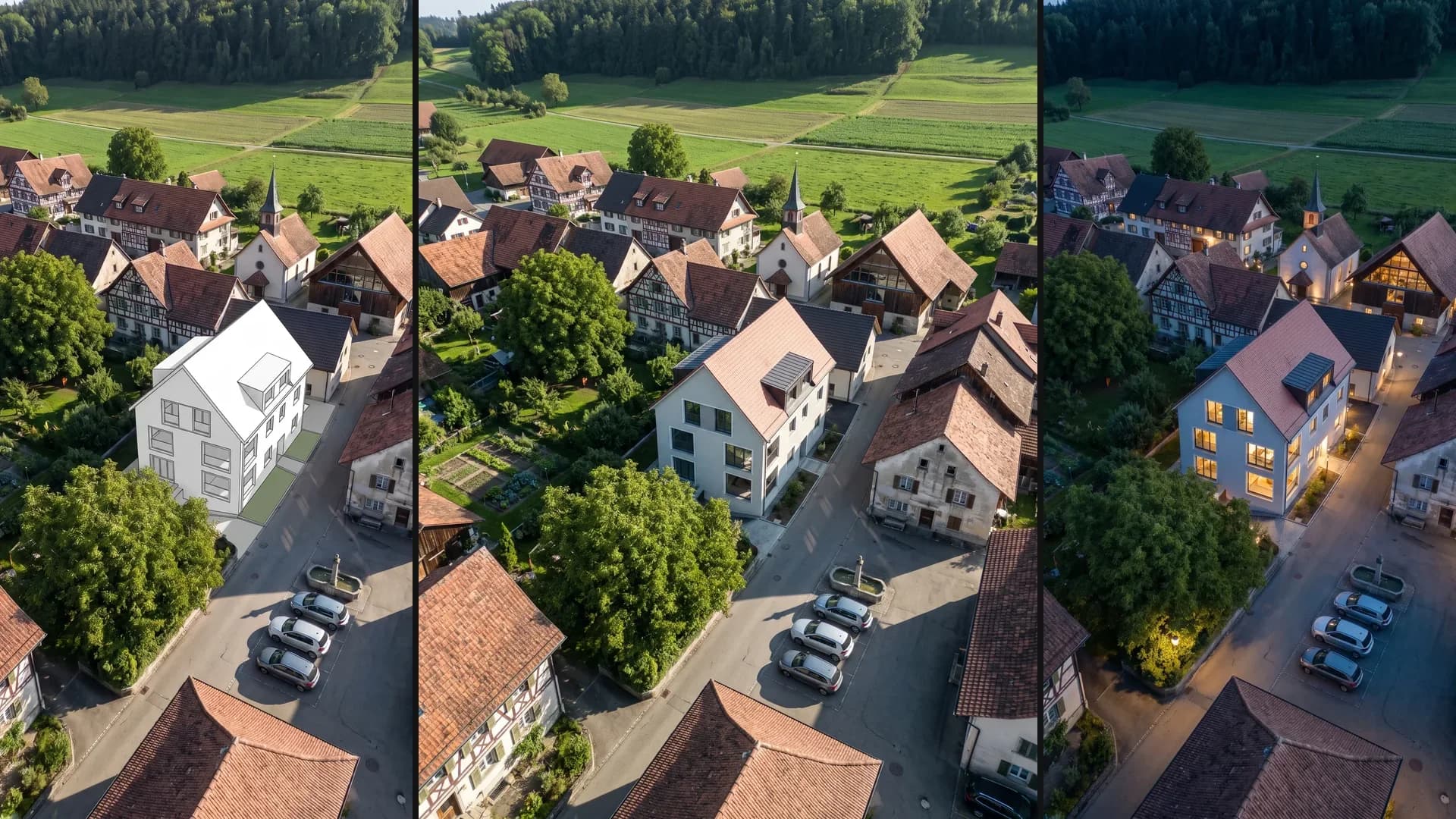
A white massing block in an aerial photo becomes a house in the village, followed by a material variant, winter and night.